Openflow Connector for PostgreSQL
Overview
The Snowflake Openflow Connector for PostgreSQL allows replication of data from PostgreSQL into Snowflake, facilitating near real-time replication. This document provides the necessary SQL commands and best practices for managing data sources, monitoring replication & troubleshooting.
Features of the Connector
- Change Data Capture (CDC): Captures and replicates data changes from selected PostgreSQL tables, ensuring Snowflake reflects the most current data
- Table Replication Lifecycle: Three-stage process (Schema Introspection → Snapshot Load → Incremental Load)
- TOASTed Value Support: Handles PostgreSQL's TOASTed values for large data types (
array,bytea,json,jsonb,text,varchar,xml) - Out-of-Range Value Handling: Manages out-of-range values in
date,timestamp, andtimestamptzcolumns
Configuration
1. Configuring the Openflow -> RDS Connection
The Openflow connector runs on Snowflake's cloud and uses AWS PrivateLink to connect to Arc's Prod DB in RDS. This is already configured.
This document contains a guide on how it was set up.
2. Creating the Snowflake Publication
Before you can replicate tables, you need to create a PostgreSQL publication that the Openflow connector will use. Note that this step has already been completed and should only be repeated if the publication has been removed.
Create the Publication Using Rake Task
The recommended approach is to use the Openflow publication rake task:
bundle exec ruby script/run_task.rb <env> 'rake openflow:create_publication'
This rake task will:
- Create the PostgreSQL publication named
openflow_replication - Configure the publication to include the set of tables used by the DBT
Verify Publication
To verify the publication was created successfully:
-- Check publication exists
SELECT * FROM pg_publication;

-- View publication configuration
SELECT pubname, pubowner::regrole, puballtables, pubinsert, pubupdate, pubdelete
FROM pg_publication
WHERE pubname = 'openflow_snowflake';

-- View tables included in publication
SELECT schemaname, tablename
FROM pg_publication_tables
WHERE pubname = 'openflow_snowflake'
ORDER BY schemaname, tablename;
3. Subscribing New Tables for Replication
All tables used by the DBT are already included in the Openflow publication. The full set of published tables can be viewed here. If you'd like data from another table to be synced to Snowflake, you'll need to add it to the Openflow publication.
Requesting Table Subscription
To subscribe a table from the ARC PostgreSQL database:
- Submit an Engineering Support Ticket The infrastructure team should run the following command on the PostgreSQL side:
ALTER PUBLICATION openflow_snowflake ADD TABLE <your_table_name>;
Example:
ALTER PUBLICATION openflow_snowflake ADD TABLE
  phone_communication_ai_summary_notes,
  chart_events,
  messages,
  ecm_communications;
Once a table has been added to the PostgreSQL publication, you need to configure the Openflow connector to replicate it to Snowflake.
Update Openflow Ingestion Parameters:
-
Open the
prod_rdsOpenflow runtime -
Navigate to the Connector Parameters (right click on connector -> Parameters)
-
Edit the
Included Table Namesconfig to add the desired tables.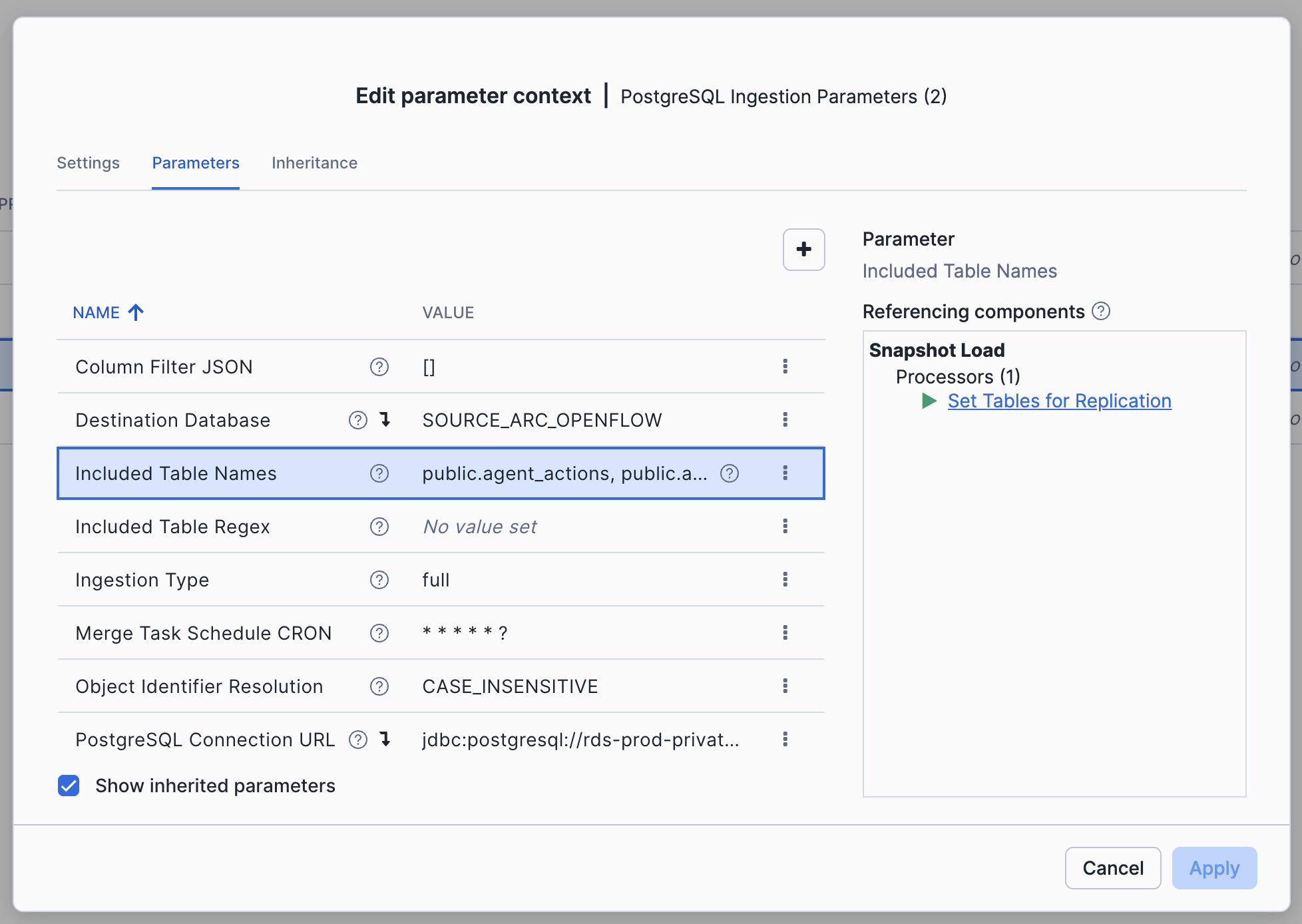
-
Hit
Apply. This will immediately begin the Snapshot load of the new tables, as well as kick off the incremental load to keep the data in sync with Prod.
Managing Table Snapshots
Re-snapshotting a Single Table
If you need to re-snapshot a single table (e.g., due to data corruption or schema changes), the process is straightforward:
- Open the
prod_rdsOpenflow runtime - Navigate to the Connector Parameters (right click on connector → Parameters)
- Remove the table from
Included Table NamesorIncluded Table Regex - Click
Apply - Add the table back to
Included Table NamesorIncluded Table Regex - Click
Apply- this will trigger a new snapshot load for that table
Re-snapshotting All Tables
If you need to re-snapshot all tables, follow this process:
-
Remove all tables from replication:
- Navigate to the Connector Parameters
- Clear the
Included Table Namesparameter - Clear the
Included Table Regexparameter - Click
Apply(this will remove StandardTableStateService for all tables)
-
Stop All Processors:
- Right-click on the canvas and select "Stop"
- Wait for all processors to fully stop
-
Empty All Queues:
- Right-click on each queue and select "Empty queue"
- ⚠️ WARNING: Clearing queues during normal operation can result in data loss. Only perform this step as part of a complete re-snapshot.
-
Clear state on the Incremental Load processor:
- Within the "Incremental Load" Process Group
- Right-click on the
CaptureChangePostgreSQLprocessor - Select "View State" → "Clear State"
-
Clear the schema on the Snowflake destination database:
- Connect to Snowflake and drop/recreate the destination schema if needed
-
Add tables back for replication:
- Navigate to the Connector Parameters
- Re-add tables to
Included Table NamesorIncluded Table Regex - Click
Apply
-
Start Processors:
- Right-click on the canvas and select "Start"
- Monitor the snapshot progress in the Openflow UI
⚠️ Important Notes:
- Re-snapshotting all tables is a disruptive operation and should only be performed when absolutely necessary
- Clearing queues during normal operation will result in data loss
- The snapshot process may take considerable time depending on table sizes
Replication and Sync Cadence
Continuous WAL Streaming
Openflow continuously streams changes from PostgreSQL's Write-Ahead Log (WAL):
- Maintains an active connection to the PostgreSQL replication slot
- Continuously captures data changes in real-time as they occur in the database
- Ensures no data changes are missed between syncs
Configurable Destination Sync Cadence
While Openflow continuously streams changes from the WAL, the cadence at which those streamed changes are commited to the destination tables can be customized.
Currently, it is set as * 0 * * * ? (hourly). Note - the first character must be *, otherwise it will only sync for one second.
To configure the sync cadence:
- Open the
prod_rdsOpenflow runtime in the Snowflake UI - Navigate to the Connector Parameters (right click on connector → Parameters)
- Locate & update the Merge Task Schedule Cron parameter
Note: Even with longer sync intervals, Openflow continues to stream and buffer changes from the WAL continuously. The sync cadence only affects when those buffered changes are written to Snowflake tables.
Logs & Telemetry
For Openflow logs:
-- Connector logs
SELECT * FROM OBSERVABILITY.OPENFLOW.EVENTS
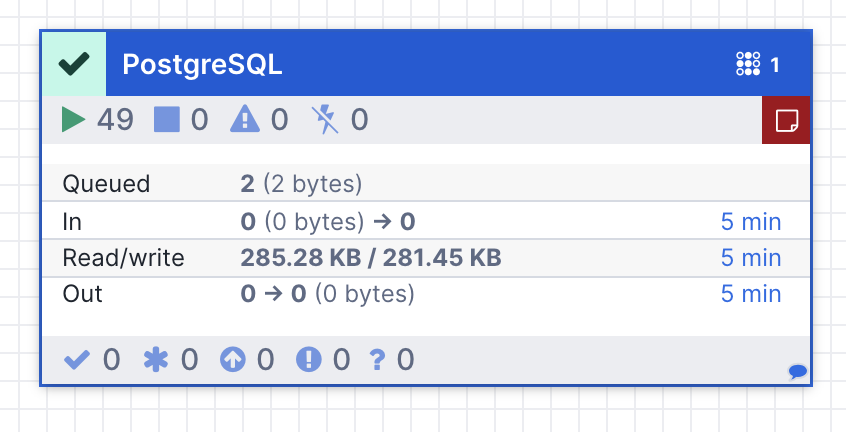
All errors should also surface via the Openflow UI. Mouse over the red error indicator to see the details.
Troubleshooting
Repairing the PrivateLink -> RDS Connection
The load balancer associated with Snowflake's PrivateLink connection points at the IP address of our prod RDS instance. It is possible this IP address will change, in which case Openflow will not be able to connect to RDS. In this case, update the PrivateLink target group to point to the RDS instance's current IP address.
This can be obtained by performing an nslookup from within the Arc VPC:
- SSH into the Arc VPC (ssh arc-prod-bastion)
- Run
nslookup <RDS endpoint> - Note down the private IP and update the address in the terraform config linked above
Resolving Replication Slot Size Warnings
This occurs when a connector (such as Openflow) stops reading from its replication slot, but the replication slot remains active. Write-Ahead Log (WAL) files continue to accumulate because the database retains all changes since the last acknowledged position by the replication slot. This can lead to:
- Disk space issues on the RDS instance
- Performance degradation due to WAL file buildup
- Connection failures if disk space is exhausted
Common Causes:
- Openflow connector is stopped or paused for an extended period
- Network connectivity issues between Snowflake and RDS
- Openflow runtime crashes or errors
- Configuration changes that temporarily halt replication
- A new Openflow connector was created and then torn down, but the associated replication slot was not removed
Resolution Steps
-
Verify Openflow is Running:
- Check the Openflow UI to ensure the connector is running
- Look for error indicators and resolve any configuration issues
- Restart the flow if needed
-
Verify there are no unused Openflow replication slots:
- Each time a new Openflow -> Postgres connector is created, it will create a new replication slot in the DB. If you create an Openflow connector for testing, be sure to delete the associated replication slot as part of the connector teardown. This can be done by:
-
- Listing replication slots. Openflow slots follow the pattern
snowflake_connector_<random_suffix>.
- Listing replication slots. Openflow slots follow the pattern
SELECT slot_name, active FROM pg_replication_slots ORDER BY slot_name;-
- Dropping any slots where
active == false:
- Dropping any slots where
SELECT pg_drop_replication_slot('<slot_name>');